Approve Claude Code permissions without leaving the game
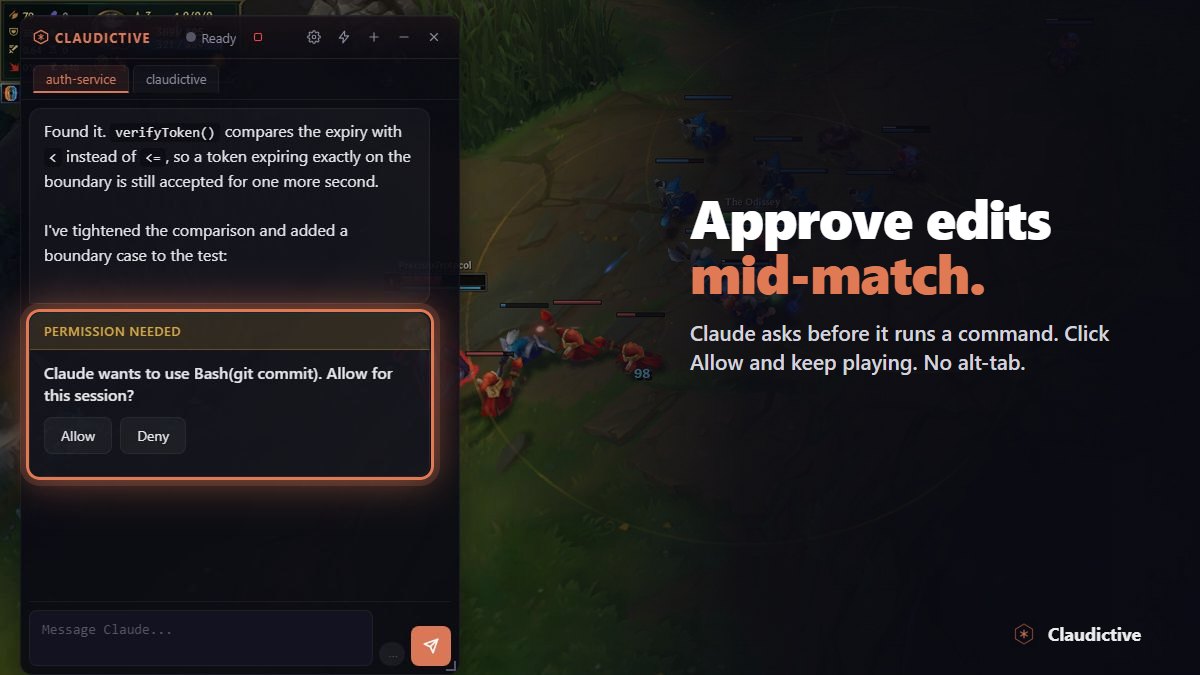
Claude Code asks before it runs a command or edits a file. Claudictive puts those permission prompts inside your game, so you can allow or deny them in a second and keep playing.
Allow or deny in one keypress
When Claude Code wants permission, a compact pill appears over the game with the command or file it wants to touch. Press Ctrl+Alt+A to allow or Ctrl+Alt+X to deny. You do not have to open the chat, and you do not have to alt-tab to the terminal.
The pill is click-through, so it never steals a click from the game. Press Ctrl+Alt+G to hide the whole overlay when you need the full screen. While the overlay is hidden, requests are asked in the terminal instead.
Questions and messages too
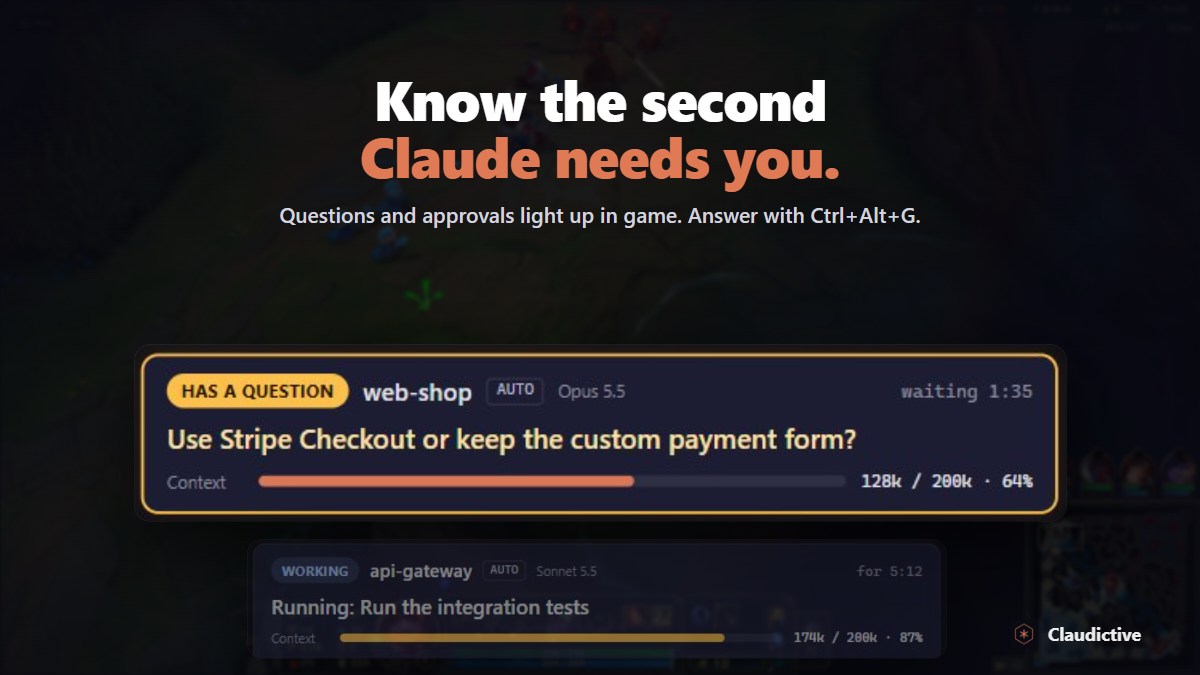
Permissions are only part of it. When Claude asks a question, such as which option you prefer, you answer it in the game. When you want to steer Claude, press Ctrl+Alt+V to expand the chat and send a message. It all goes into the same Claude Code session, so your terminal stays in sync.
How it works
- Install Claudictive from Overwolf. It is free and the installer sets up Overwolf if needed.
- Click Connect in the hub. Claudictive lists what it adds to
~/.claude/so Claude Code can send prompts to the overlay. - Work with Claude Code as usual from the CLI, VS Code, JetBrains or the desktop app.
- Launch a game. Permission prompts and questions show up over it.
You stay in charge
Claudictive does not approve anything for you. Every request still waits for your answer, exactly as it would in the terminal. The difference is that you see it right away. If a request goes unanswered in the game for a while, or the overlay is hidden, it falls back to the terminal prompt as usual, so nothing is approved without you.